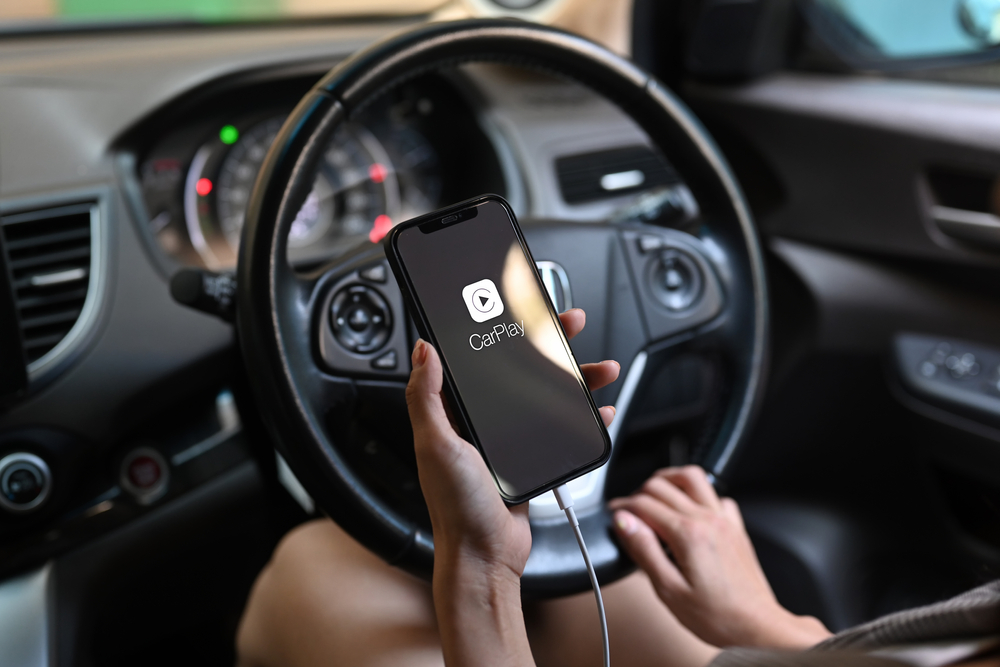




You slide into the driver’s seat, plug in your phone, and prepare for your morning ritual. You expect your favourite playlist to kick in and your commute route to bloom across the dashboard. Instead, you get nothing. A black screen, a “No Device Detected” error, or worse, a connection that drops every time you hit a pothole.
It is a uniquely modern brand of frustration. We have become so reliant on the seamless integration of our digital lives and our driving experience that when CarPlay fails, the car feels broken, even if the engine is purring perfectly.
The Frustration of a Silent Dashboard
The silence of a failed CarPlay connection is more than an inconvenience; it’s a disruption of your workflow and your safety. Trying to faff with a phone mount or squint at a handheld screen while driving is exactly what CarPlay was designed to prevent. When you find Apple CarPlay not working, you aren’t just missing your tunes; you’re losing the hands-free interface that keeps your eyes on the road.
Why CarPlay is prone to occasional hiccups
To fix the problem, you first have to understand the “handshake.” Apple CarPlay isn’t just a simple video feed; it is a complex, high-speed data exchange between two very different computers: your iPhone and your car’s infotainment system (the “head unit”).
Because these two devices are made by different manufacturers and run on different software cycles, they occasionally lose their rhythm. A minor iOS update might change a security protocol, or a dusty charging port might drop a single packet of data, causing the whole bridge to collapse. Think of it like a conversation between two people speaking different languages through a translator; if the translator gets distracted for even a second, the conversation stops.
The “Quick Wins”: Check These First
Before you start tearing through your glovebox or scheduling a costly dealership appointment, we need to rule out the “silly” mistakes. Most CarPlay issues are actually caused by hidden settings that were toggled off by accident or during a system update.
1. Is CarPlay enabled on your iPhone?
It sounds elementary, but software updates have a pesky habit of resetting preferences. Navigate to Settings > General > CarPlay. Here, you should see your car listed under “My Cars.” If you don’t see it, or if you’ve recently changed iPhones, your phone might have simply “forgotten” the car. If your car is listed, tap it and ensure the “Allow CarPlay While Locked” toggle is green. If this is off, your connection will die the moment your phone screen goes dark.
2. Check your Screen Time restrictions
This is the “ghost in the machine” for many users. Apple’s Screen Time features can accidentally block CarPlay under the guise of content privacy. Go to Settings > Screen Time > Content & Privacy Restrictions. If this is on, tap Allowed Apps and make sure the CarPlay toggle is enabled. If CarPlay is restricted here, no amount of cable-swapping will bring your dashboard back to life.
3. Ensure Siri is actually “awake”
CarPlay is built entirely on the backbone of Siri. Apple designed the interface to be voice-first for safety. Consequently, if you have disabled Siri to save battery or for privacy reasons, CarPlay will often refuse to launch. Go to Settings > Siri & Search and ensure that “Listen for ‘Hey Siri'” or “Press Side Button for Siri” is enabled. If Siri isn’t listening, CarPlay isn’t talking.
Troubleshooting Wired Connections
If you use a physical cable, your connection issues are likely mechanical. In the world of data transfer, the cable is the “gasoline”; if the fuel line is clogged or leaky, the engine won’t turn over.
The “Gasoline” of CarPlay: Why the cable matters most
Most people grab the first USB cable they find in a junk drawer, but CarPlay is incredibly demanding. It requires a high-speed data transfer cable, not just a “charging” cable. Many cheap, third-party cables are designed only to carry power, not the massive amounts of data required to project a high-resolution interface.
If you aren’t using an official Apple MFi-certified (Made for iPhone) cable, that is your most likely culprit. Even a certified cable can develop internal frays from being bent around a gear shifter. If you’re experiencing intermittent drops, swap the cable for a brand-new Apple original lightning cable as your first diagnostic step.
Cleaning the lightning or USB-C port (The toothpick trick)
Your iPhone lives in your pocket, which is essentially a lint factory. Over months of use, tiny fibres get jammed into the bottom of your charging port. When you plug in your cable, the lint acts as a cushion, preventing the metal pins from making a full “click” connection.
Take a wooden toothpick or a plastic dental pick (never use metal, as it can short out the pins) and very gently probe the port. You will be shocked at the amount of compressed lint you can fish out. Once the port is clear, the cable should “snap” into place firmly.
Testing the USB port in your vehicle
Don’t assume the car’s USB port is invincible. Many modern vehicles have multiple USB ports, but often only one of them is wired for data and CarPlay. The others are usually “power only” for passengers. Look for a small smartphone icon or a “USB 1” label. If you’ve plugged into a port labelled only with a lightning bolt, you’re only getting a charge, not a connection.
Fixing Wireless CarPlay Issues
Wireless CarPlay is a marvel of convenience, but it is much more temperamental than its wired cousin. It relies on a complex “handshake” where Bluetooth initiates the connection, and then Wi-Fi takes over to handle the heavy data lifting.
Forget and reconnect: The digital “clean slate”
If your wireless connection has become sluggish or you find Apple CarPlay not connecting, you need to force a “breakup” between the car and the phone. On your iPhone, go to Settings > Bluetooth, find your car, and tap “Forget This Device.” Do the same in the CarPlay settings. Crucially, go into your car’s infotainment screen and delete your phone from its paired device list. Restart both the car and the phone, then pair them again from scratch. This clears out corrupted cache files that might be blocking the handshake.
The role of Wi-Fi and Bluetooth interference
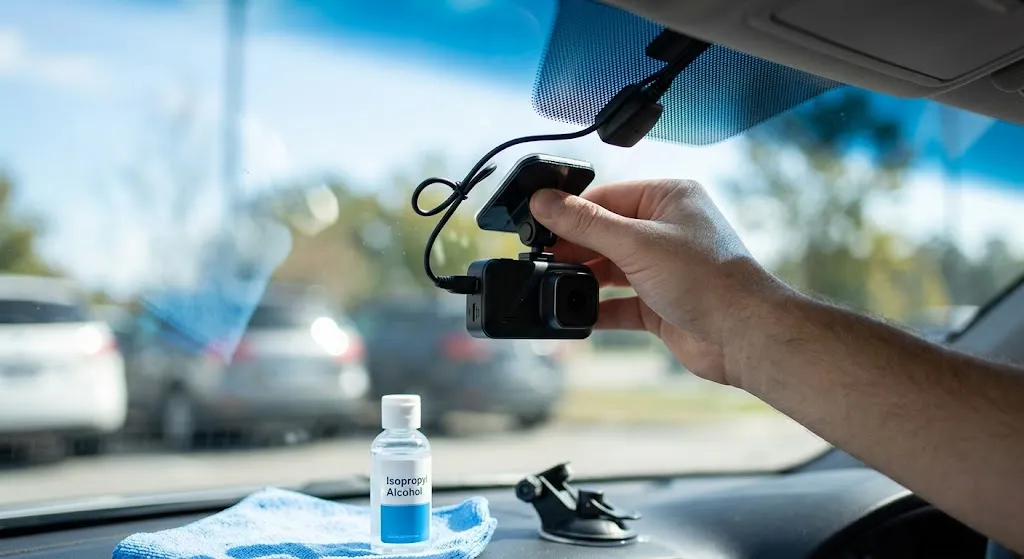
Because wireless CarPlay uses Wi-Fi, it is susceptible to environmental interference. If your CarPlay always cuts out at the same intersection, it’s likely due to high-frequency interference from nearby power lines or industrial Wi-Fi routers. However, if it happens everywhere, check your phone’s settings. Ensure you haven’t manually connected to a different Wi-Fi network (like a dashcam or a portable hotspot) that is “stealing” the connection away from the car, and check that you haven’t accidentally enabled aeroplane mode.
Resetting your network settings
If the “Forget and Reconnect” method fails, you may have a deeper glitch in your iPhone’s communication stack. You can perform a Reset Network Settings (Settings > General > Transfer or Reset iPhone > Reset > Reset Network Settings). Note: This will wipe your saved Wi-Fi passwords and Bluetooth pairings, but it often flushes out the “software gunk” that prevents CarPlay from authenticating.
Software and Firmware Glitches
Sometimes the hardware is fine, but the “brains” of the operation have stopped communicating. This is especially common after a major software release.
Is your iOS up to date?
Apple frequently releases “point updates” (like iOS 17.1 to 17.1.1) specifically to fix bugs with peripheral connections. If you are several versions behind, your phone might be trying to talk to your car using an outdated protocol. Always ensure you are on the latest stable build of iOS.
The forgotten step: Updating your car’s infotainment system
Your car is a computer on wheels, and like any computer, its software gets old. Manufacturers like Ford, BMW, and Toyota release firmware updates for their head units to improve compatibility with newer iPhones and systems like Android Auto. Check your manufacturer’s website or your car’s manual; you might need to download an update onto a USB stick or visit a dealer to have the system flashed. If your phone is running 2024 software and your car is running 2019 software, they will eventually stop understanding each other.
Hard resetting your iPhone and your head unit
A simple “off and on” isn’t always enough. For the iPhone, perform a hard restart (quickly press Volume Up, then Volume Down, then hold the Power button until the Apple logo appears).
For the car, most infotainment systems can be “rebooted” without turning off the engine. Usually, this involves holding down the volume knob or the “Power” button for 10–15 seconds until the screen goes black and the manufacturer logo reappears. This clears the head unit’s RAM and can resolve frozen interfaces instantly.
Advanced Fixes for Persistent Connection Drops
If you’ve tried the basics and still find yourself staring at a blank screen, it’s time to look at the edge cases.
Dealing with VPN interference
VPNs (Virtual Private Networks) are great for privacy, but they are a common enemy of CarPlay. Many VPNs work by rerouting your data through different servers, which can confuse the iPhone’s ability to “see” the car’s local Wi-Fi network. If you use a VPN like NordVPN or ExpressVPN, try disabling it entirely to see if CarPlay stabilises. If that fixes it, you may need to white-list your car’s connection within the VPN app.
Checking for “USB Restricted Mode”
In the name of security, iPhones have a feature called “USB Restricted Mode” that prevents USB accessories from connecting if the phone has been locked for more than an hour. If you find that CarPlay works fine when you first leave the house but fails after a long pit stop, go to Settings > Face ID & Passcode and ensure that USB Accessories (under “Allow Access When Locked”) is toggled to ON.
When to suspect hardware failure
If you have tried three different Apple-branded cables, reset your network settings, and updated all software, you may be looking at a hardware failure. This could be a failing USB port in the car’s dashboard or a damaged lightning/USB-C port on the phone. Try connecting a different iPhone to your car. If that phone works, the problem is your device. If it doesn’t, the problem lies within the car’s hardware.
How to Prevent Future CarPlay Failures
Prevention is better than a roadside troubleshooting session. Maintaining a few good habits can keep your dashboard running smoothly for years.
Choosing the right hardware
Stop buying $5 cables at gas stations. They lack the shielding necessary to prevent electromagnetic interference from your car’s electronics. Stick to cables that are explicitly labelled “MFi” or, even better, use the cable that came in your iPhone box. If you have a wireless system, avoid placing your phone in “dead zones” like deep centre consoles where the signal has to penetrate thick plastic and metal.
Routine digital maintenance for your iPhone
Once a month, make it a habit to clean your charging port and restart your iPhone. Software is like a house; if you never sweep the floors, the dust (cached data) eventually builds up. A simple weekly restart can prevent the memory leaks that often lead to CarPlay crashes.
Still No Luck? Your Next Best Steps
If you’ve followed this guide and your screen remains stubbornly dark, don’t lose hope. Your next step is to determine the “owner” of the problem.
First, visit the Apple Support website or a local Apple Store to run a diagnostic on your phone’s port. If the phone checks out, your final stop is the car dealership. Ask them to check for “Technical Service Bulletins” (TSBs) related to the infotainment system. Often, there is a known bug that they can fix with a quick proprietary software flash.
CarPlay is a bridge between two worlds. When it works, it’s magic. When it doesn’t, it’s a puzzle. By methodically checking the “Quick Wins,” securing your hardware, and keeping your software in sync, you’ll be back to your music and maps in no time. Safe travels.
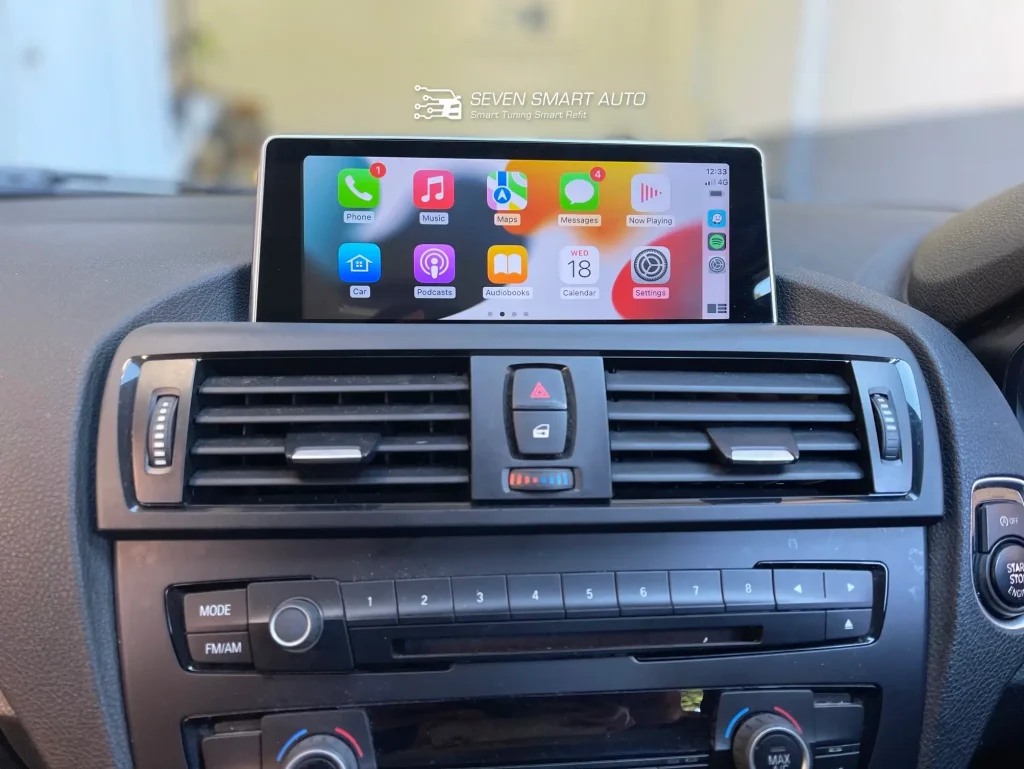
Still asking, “why is my Apple CarPlay not connecting?” If you’ve tried the basic fixes and your system still will not pair properly, explore Apple CarPlay upgrade and installation solutions from Seven Smart Auto for expert support and reliable in-car connectivity.